Lost Business Tracking
The Lost Business Tracking option allows users to set up a list of reasons for why a guest did not check in or left early to track the lost business. Common reasons include cheaper rate offered elsewhere, trip canceled, dissatisfied with service, and so on.
Perform the following steps to create a new lost business tracking reason:
Navigate to Settings ➜ All Settings ➜ Policies & codes (under Reservations).
Scroll down or click Lost Business Tracking.
Click Add. The New Lost Business Tracking Reason dialog box appears.
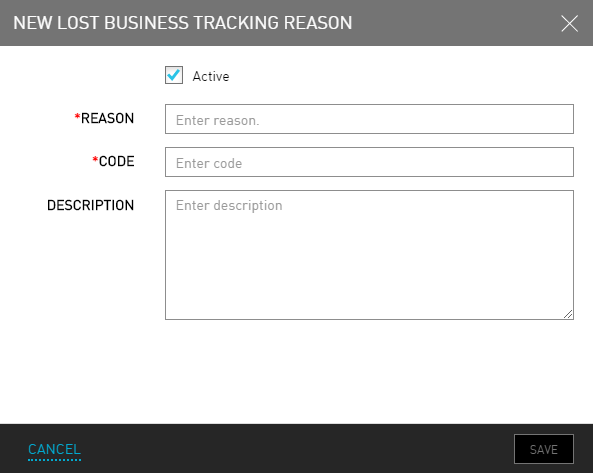
Refer the following table and fill in the fields to create a lost business tracking reason:
|
Field |
Description |
|---|---|
|
Active |
Enable the checkbox to activate the lost business tracking reason. |
|
Reason |
The reason for the lost business (2-6 characters with no alphanumeric characters or spaces). |
|
Code |
A unique code to make the reason easy to identify. |
|
Description |
A brief description so the guest service agents and others can easily understand when to apply this reason to a lost reservation |
Click Save. The lost business tracking reason is created successfully.